Create a video with AI
Turn a prompt or image into a video, choose a model and understand the settings before you generate.
Browse guides
On this page
Start with one clear moment: a product turning in the light, a character speaking or an unexpected visual joke. SwipeForge gives you several ways to turn that idea into a video.
Start from words, an image or a clip
In Create a post, choose the creation method that matches your starting point.
Create with AI starts from written instructions. Describe the subject, setting, action and camera movement.
Video from image uses an image you upload or select from your library. Depending on the model, you can choose Animate this image, which starts the video from that image, or Use as reference, which brings a character, product or style into a new scene. The number of images and supported roles depend on the model.
Edit video with AI starts from an existing clip. Choose the relevant excerpt and explain the change. See editing and finishing before starting an edit.
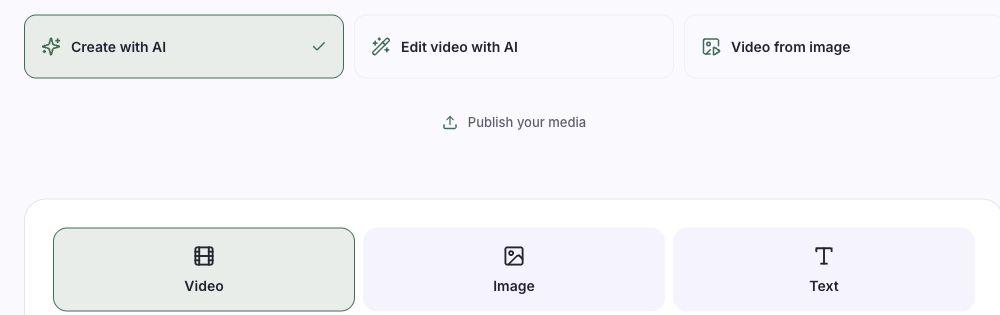
Choose a starting method first, then review the settings for that method.
Choose your model
Open Choose your AI to see the video models. The current catalog includes Google Gemini Omni Flash, Seedance 2.5, Higgsfield · Kling 3.0 Pro, LTX 2.5 and Runway Gen-4.5. A listed model may be marked Unavailable; being in the catalog does not mean your account can use it today.
Model choices can change between text, image and video editing modes. Each model has its own supported lengths, reference options and output settings. Use the choices shown for the selected mode rather than assuming every model supports every feature.
Pick a visual direction
Open Choose style to browse starting looks such as Talking head, Product ad, Absurd meme, Anime & 2D, Cinema & trailers, Animals & creatures, Effects & transformations and Music & dance. Choose one that fits your idea or keep the look in your own prompt.
Selecting a style does not run a paid generation. It sets a visual direction; it does not train a model or guarantee an exact result. Check the prompt, model and other settings before generating.
Write instructions you can check
A useful prompt describes something you can recognize in the result:
A small red paper boat floats across a white bowl of water on a wooden kitchen table. One continuous close-up. Gentle ripples, soft afternoon sunlight. No captions or logos.
Keep your first attempt focused. Add camera movement, a visual style or sound details when they matter to the idea. A style is a creative instruction, not a promise of an identical look every time.
Prompt ideas & hooks can help you develop a starting point. Plan multiple scenes gives you scene-by-scene instructions and lengths. The combined scene lengths must fit the available video length.
If you write scripts in batches, choose Several videos at once and paste them with a line of three dashes (---) between scripts. Each script becomes its own video with the same model, format and style, up to 10 at a time. This option appears when batch generation is on for your workspace.
Set the frame, length and sound
Choose 9:16 for a vertical video or 16:9 for a horizontal video when the model supports it. Set the video length using the control. Writing a different duration in the prompt does not replace the selected length.
Available length depends on both the model and your account. A longer scale or a locked part of the control does not mean that length is already available. Resolution choices can also depend on access.
For sound, use the video's model or the available ElevenLabs option. Extra sound instructions are optional. If your video already has spoken dialogue, listen to it before replacing the soundtrack with a voiceover.
Generate and review
Check the estimated cost, remaining allowance and selected settings. Choose Generate content only when you want to start the generation. Save as draft keeps your inputs without making the video.
You can leave Create while a generation runs. The panel in the bottom right corner shows it, and you can open it from there. Reloading the page does not intentionally start a second generation. If a task is taking longer than expected, check its status before submitting another one.
Watch the full result. Check faces, hands, object consistency, motion and sound. A new generation or AI edit can use more allowance or incur another charge. When you like the result, finish the video or prepare a post.
Still stuck? Contact support or check access and troubleshooting.
Your next idea starts here.
Make a video, bring an image to life or try something unexpected.