Creative workflows
How to choose an AI video model for your idea
Gemini, Seedance or Kling? A practical way to choose an AI video model by the kind of video you are making, with a short test routine before you commit.
 Kirill Zaikov5 min read
On this page

There is no single best AI video model. The useful question is which model suits the video you are making now. Start from the kind of video (a product shot, a talking presenter, a meme, an animation), pick the model that is positioned for it, then run the same short prompt on a second model and compare.
This guide compares three video models offered in the SwipeForge studio. It is not a complete catalog. The pairings below are editorial starting points. They are not benchmark results.
What actually differs between models
Ignore the marketing names and look at what changes your result:
- Motion and physics. How believable movement looks, especially with people, liquids and fast action.
- Look. Some models lean toward realistic footage, others handle stylized animation better.
- Sound. Whether dialogue, ambience and music are generated with the picture.
- Inputs. Text only, a starting image, a reference video or an existing clip to edit.
- Length. The range of clip durations on offer.
- Cost of a take. Each generation is a new take, so a model that gets close faster saves more than one that is cheaper per second.
Models change often. Treat any comparison, including this one, as a place to start your own test.
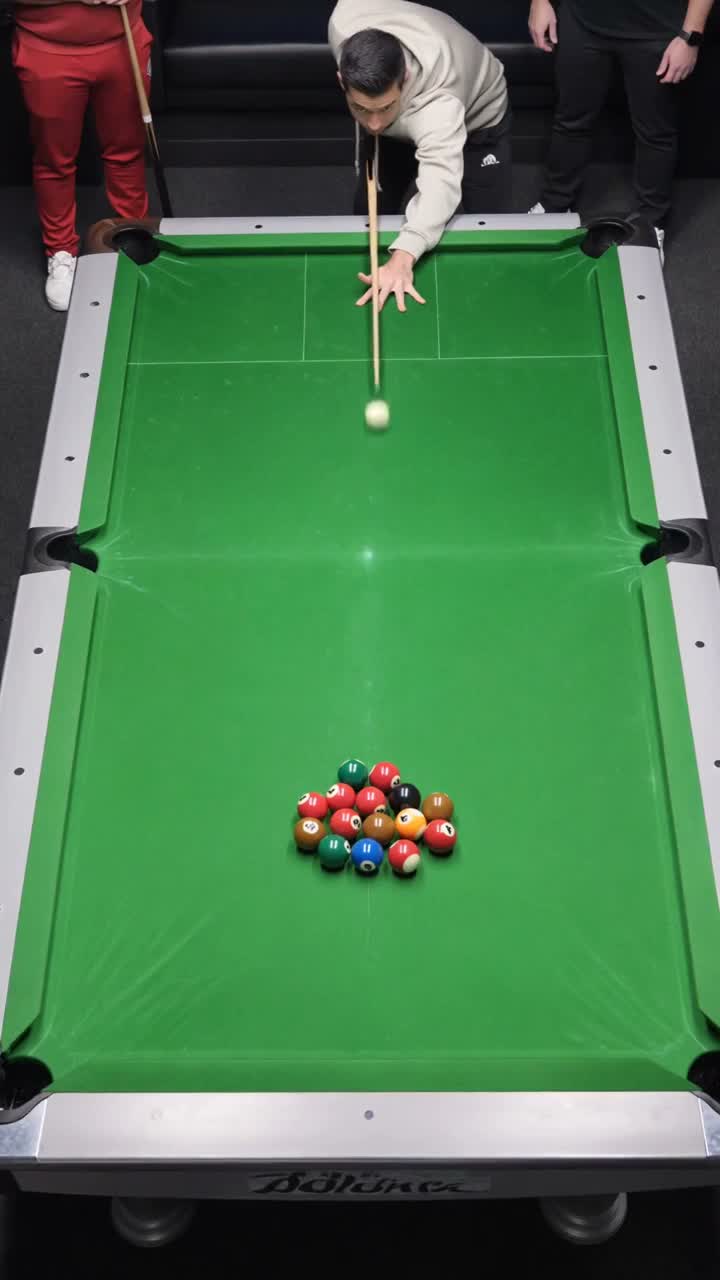
A supplied SwipeForge example. Compare details such as the cue, hands and ball motion when reviewing your own candidate clips. This is not a model benchmark.
Three video models to compare in SwipeForge
| Model | Positioned for | Good first choice when |
|---|---|---|
| Google Gemini Omni Flash | Video with sound, references and editing | You need dialogue or ambience, or you are working from a source clip |
| Seedance 2.5 | Animation, memes and dance, with sound | The idea is stylized, playful or built around movement |
| Kling 3.0 Pro via Higgsfield | Product ads and cinematic scenes, with sound | The look of a product or a scene matters most |
Available models and tools depend on your access. Check the studio for the options your account has.
Match the model to the kind of video
The style catalog in the studio suggests a starting model for each style. You can always choose another one. Your selection is never switched for you.
| Kind of video | Try first | Then compare with |
|---|---|---|
| Talking head | Gemini Omni Flash | Kling 3.0 Pro |
| Product ad | Kling 3.0 Pro | Gemini Omni Flash |
| Cinematic scene or trailer | Kling 3.0 Pro | Gemini Omni Flash |
| Animals and creatures | Kling 3.0 Pro | Gemini Omni Flash |
| Absurd meme | Seedance 2.5 | Another available model |
| Anime and 2D | Seedance 2.5 | Another available model |
| Music and dance | Seedance 2.5 | Another available model |
| Effects and transformations | Seedance 2.5 | Gemini Omni Flash |
| Sound and dialogue | Gemini Omni Flash | Kling 3.0 Pro |
| Spaces and B-roll | Gemini Omni Flash | Kling 3.0 Pro |
Read the table as "where to begin". Your subject, your prompt and your taste decide the rest.
Run a short test before you commit
A fair comparison takes one prompt and two takes.
- Write one specific prompt. One subject, one action, one camera move. How to write a text to video prompt has a structure for this.
- Keep it short. Use a short duration for the test. You are judging direction, not the final cut.
- Generate it on two models. Same prompt, same shape, no other changes.
- Compare what matters for this video. For a product: does the shape hold? For a presenter: do the mouth and the voice match? For a meme: is the moment readable in the first second?
- Pick one and iterate there. Change one thing per take.
An example test prompt for a product ad:
A citrus soda can on wet black stone, studio light from the left.
A splash of water rises behind the can and freezes for a moment.
The camera moves slowly closer.
Keep the can shape and colors consistent. No captions or logos.
This is an illustrative prompt. Review the settings and the price shown in the studio before starting a paid generation.
When to switch models
Stay with a model while each take gets closer. Consider switching when:
- The same flaw returns after two or three focused changes.
- You need something the model does not offer, such as sound with the picture or a source clip as input.
- The look is consistently wrong for the idea: too realistic for a cartoon or too stylized for a product.
Switching is not a failure. Different parts of a series can come from different models, as long as you review them side by side.
Once you have a take you like, the rest is the same for every model: trim, add text or voice, then publish it to your platforms. You can try the test routine in the studio.
FAQ
Which AI video model is the best?
It depends on the video. A model that suits a product close-up may not suit a dance meme. Choose by the kind of video and confirm with a short test on two models.
Do all three models generate sound?
All three are offered in the studio with sound. How sound behaves, for example dialogue compared with ambience, differs by model, so listen to a test take before you plan a video around it.
Can I use an image or an existing video as a starting point?
Yes. You can start from an image or work from a source clip. Which inputs are available depends on the model and the mode you choose. See image to video with AI for the image workflow.
Why is Kling listed "via Higgsfield"?
In SwipeForge, Kling 3.0 Pro runs through the Higgsfield API. It is the Kling model, accessed through that provider.
Will the recommendations change?
Yes. Models are updated often and new ones appear. Treat the pairings as starting points and repeat the short test when a model changes.
Written by