Creative workflows
Image to video with AI: animate a still or use it as a reference
Learn the two ways to turn an image into an AI video, how to choose a source image and how to write motion instructions that keep your subject intact.
 Kirill Zaikov4 min read
On this page
There are two ways to make a video from an image. You can animate the image, so it becomes the opening frame and starts to move. Or you can use it as a reference, so the model builds a new scene that keeps the look of your subject. Choose the mode first. It decides what you should write in the prompt.
Animate or use as a reference
| Mode | What happens | Choose it when |
|---|---|---|
| Animate the image | The picture is the starting frame. The model adds motion to what is already there | You like the composition and want it to come alive |
| Use as a reference | The model creates a new scene and tries to keep the subject's look | You have a product or character photo and need a different setting or angle |
The two modes are different creative choices and they give different results from the same picture. In SwipeForge, check which one is selected before you generate. You can start with an image from your library or bring your own.
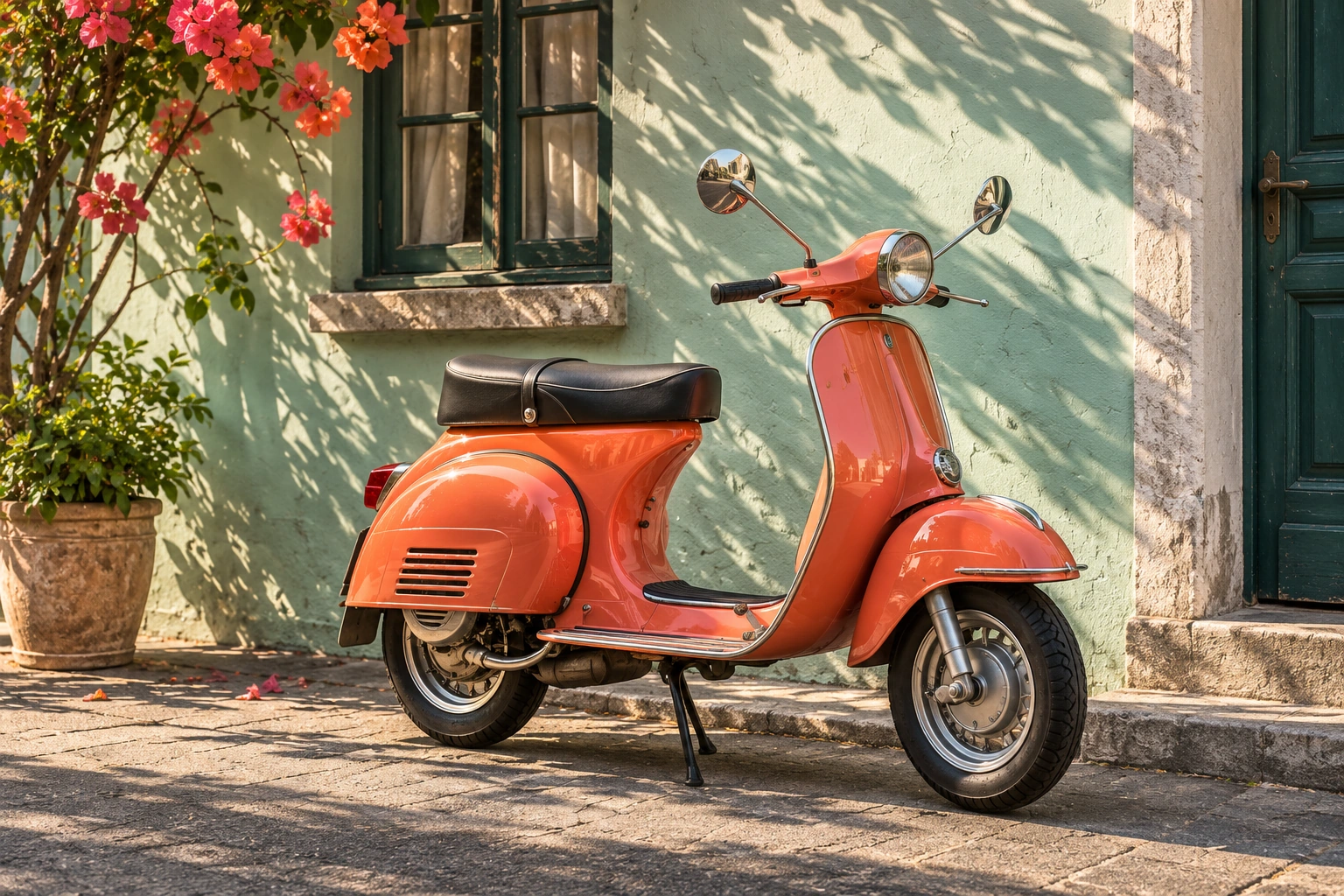
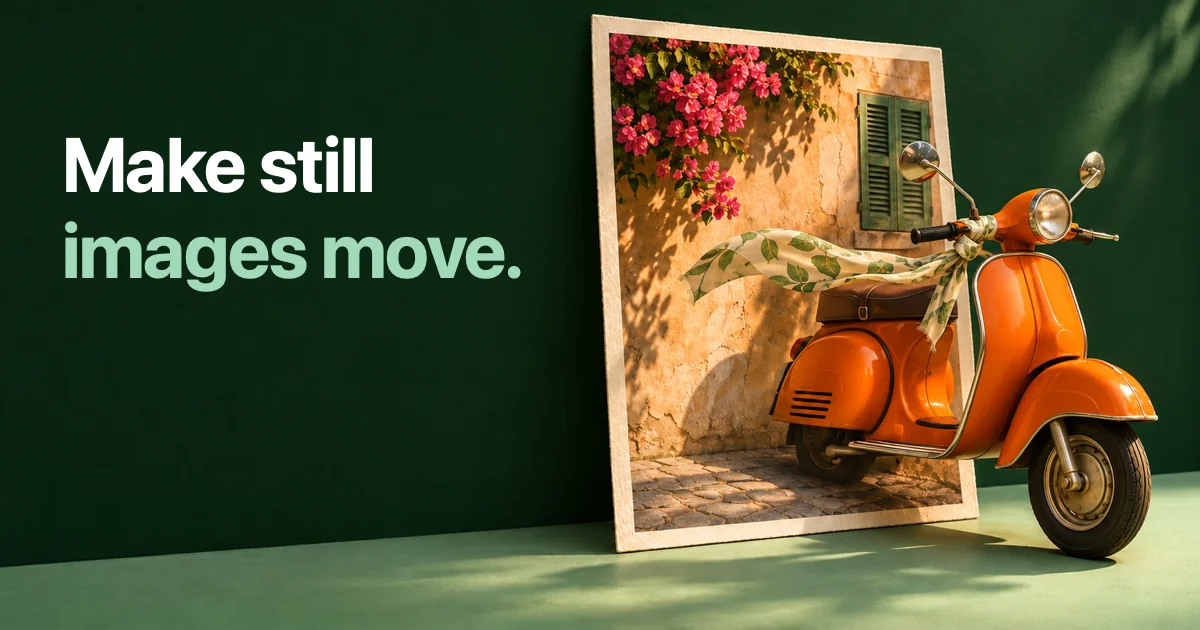
Illustrative starting image. Describe the movement separately from the objects already visible.
Choose a source image that will hold up
The model can only keep what it can see clearly. A good source image makes the largest difference to the result.
- One clear subject. A product on a plain surface is easier to keep consistent than a crowded shelf.
- Enough resolution. A small thumbnail enlarged to video size will look soft in every frame.
- The right shape. Use a vertical picture for a vertical video and a horizontal one for a horizontal video. Otherwise something has to be cropped or invented.
- Room to move. If the subject touches the edge of the frame, a camera move has nowhere to go.
- No text you need to keep sharp. Small labels and fine print are the details most likely to change between frames.
Use images you have the right to use. For a photo of a person, make sure you have their permission.
Describe the motion, not the picture
When you animate an image, the model already has the subject and the setting. Do not describe them again. Say what should move, how the camera behaves and what must not change.
An example for an orange scooter parked on a sunlit street:
A light breeze moves the leaves in the background.
Sunlight shifts slowly across the scooter.
The camera drifts a little to the right.
Keep the scooter still and its shape unchanged. No people enter the frame.
When you use the image as a reference, write a full scene prompt instead, because the setting is new:
The same orange scooter rides along a coastal road at sunset.
Side view, the camera travels with it.
Sound of wind and a quiet engine.
Keep the scooter's color and shape as in the reference image.
This is an illustrative concept. Small motion is easier for a model to hold than a large change. Start with a gentle move and extend from there.
Check what changed
Compare the finished clip with your source image, not only with your memory of it.
- Is the subject the same shape and color at the end as at the start?
- Did details such as handles, straps or wheels stay in place?
- Did any text or logo on the product change?
- Is the motion smooth, or does something jump?
- Does the frame fit the destination you have in mind?
If a detail drifts, shorten the request. Ask for less movement or a calmer camera. A new take is a new generation, so change one thing at a time.
From the clip to a post
A short animated product shot works well as an opening for a longer idea. Trim it to the moment that matters, add on-screen text if the post needs words, then write a caption that says something the video does not.
For the creation side, see how to write a text to video prompt. For the publishing side, the Instagram use case and the TikTok use case describe what each destination accepts. Or open the studio and try one image.
FAQ
Can I turn any photo into a video?
Technically most clear photos can be animated. The result depends on the picture and the model. Simple compositions with one subject hold up best.
Will the product look exactly the same in the video?
Not always. Models can change small details, especially text, fine patterns and thin parts. Review the clip against the source image and ask for less motion if details drift.
Which mode should I use for a product photo?
Animate the image when the photo already shows the scene you want. Use it as a reference when you want the product in a different place or from a different angle.
Do I need a vertical image for TikTok or Shorts?
A vertical source fits a vertical 9:16 video without cropping. If your picture is horizontal, either crop it yourself first, so you control what is kept, or use it as a reference for a new vertical scene.
Written by